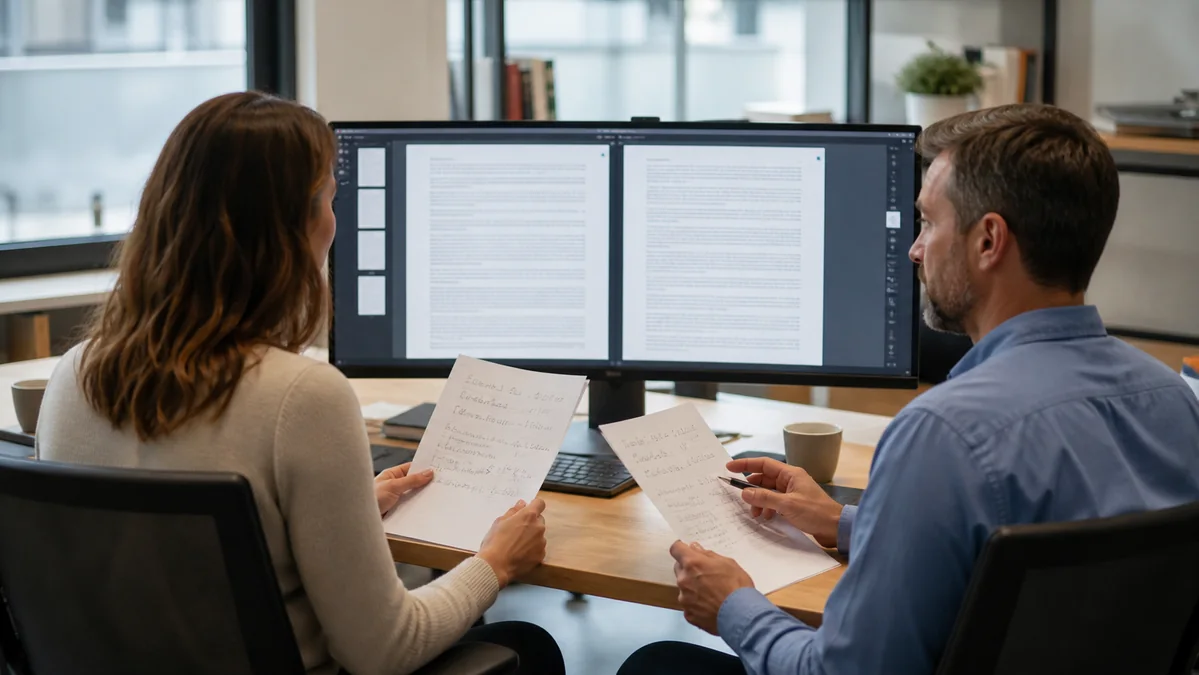
A OneDrive conflict copy usually means two devices or editors changed a file before all updates synchronized. The copy with the newest timestamp is not automatically complete. Keep both, identify their origins, and compare the content that matters.
Immediate rule: Do not delete, rename over, or save into either source file. Copy both into a nonsynced comparison folder and create the final master as a third file.
1. Stop creating more conflicting copies
- Ask collaborators to close the file.
- Let OneDrive finish any active transfer if it is progressing normally.
- If conflicts multiply, pause OneDrive temporarily.
- Copy both candidates to a local folder outside OneDrive.
- Add labels such as “laptop copy” and “web copy.”
Do not disconnect the account or reset OneDrive as the first step. Those actions can complicate unsynchronized local evidence. The goal is to freeze the two known states before troubleshooting sync.
2. Record each file's identity
For both candidates, capture:
- full original path;
- filename and extension;
- modified and created times;
- file size;
- device or collaborator associated with it;
- whether OneDrive shows it online;
- available version history.
Windows timestamps can change during copy or download, and cloud-modified time may represent the last upload rather than the latest complete content. Treat metadata as ranking evidence, not a verdict.

3. Open both in the correct application
Use read-only mode where available. For Microsoft 365 files, disable AutoSave on the comparison copies or keep them outside the synced folder.
- Word: compare last paragraphs, comments, tracked changes, headers, and tables.
- Excel: inspect sheet tabs, formulas, named ranges, macros, charts, and external links.
- PowerPoint: check slide count, notes, media, fonts, and linked charts.
- PDF or image: compare page count, dimensions, annotations, and export quality.
- Archives or project files: test integrity and referenced assets in the required application.
The larger file may contain more embedded media, but it may also include stale or duplicated content. Verify expected work directly.
4. Use version history as a third reference
At OneDrive.com, locate the intended cloud file and open Version history. Download or preview versions around the conflict time. This can reveal which device uploaded first and whether a clean intermediate state exists.
Do not restore history yet. Add the best historical candidate to the comparison set. A version between the two conflict copies may contain the last common state and make the merge easier.
5. Merge into a third master
- Choose the structurally healthier copy as the base.
- Save it as a new file ending in “merged-review.”
- Transfer only verified missing content from the other candidate.
- Record what was moved and from which source.
- Close and reopen the merged file.
- Run application-specific validation.
For a Word file, use Compare or tracked changes when appropriate. For Excel, copy formulas and formats deliberately rather than pasting only displayed values. For PowerPoint, inspect theme behavior after transferring slides.
6. Confirm whether two files are identical
If the files appear identical, compare their byte hashes outside OneDrive. On Windows PowerShell, the Get-FileHash command can calculate SHA-256 for each copy. Matching hashes prove the bytes are identical; different hashes only prove that some bytes differ.
Office metadata can produce different hashes even when visible content looks similar. A hash is useful for exact identity, not semantic comparison.
7. Return one file to OneDrive
- Keep the two source copies in the local evidence folder.
- Confirm the merged file opens after a full application restart.
- Resume OneDrive and wait for healthy sync status.
- Upload or move the merged master into a temporary cloud folder.
- Open it from OneDrive on the web.
- Replace the collaborative file only after stakeholder approval.
Avoid dropping all three candidates back into the original folder. That restarts title confusion and increases the chance someone edits the wrong copy.
Decide from verified evidence
| Evidence | Meaning | Action |
|---|---|---|
| Same SHA-256 hash | Files are byte-identical | Keep one, archive proof |
| One copy has newer text only | Partial divergence | Merge into third file |
| One Office file opens with errors | Structural damage | Use healthy base |
| Version history has a clean state | Cloud intermediate exists | Save it for comparison |
| Conflict files keep multiplying | Sync or coauthoring issue persists | Pause edits and troubleshoot |
| One copy belongs to another account | Wrong sync location possible | Verify tenant and path |
Prevent repeated conflict loops
Keep active collaborative files in one OneDrive or SharePoint location, use supported Office coauthoring, and avoid simultaneous offline edits from several devices. Wait for OneDrive to report current status before shutting down. For complex files that do not support safe coauthoring, assign one editor at a time and use dated checkpoints.