OneDrive and Google Drive both offer trash and version recovery, but the systems are not interchangeable. OneDrive integrates Office, SharePoint, Windows sync, and whole-account restoration. Google Drive separates Docs editor history from versions of uploaded files and treats shared drives as organization-owned storage.
Which recovery route fits? Start with the event, account type, owner, and file format—not the cloud service's brand.
Recovery features at a glance
| Recovery need | OneDrive | Google Drive |
|---|---|---|
| Recently deleted personal file | OneDrive Recycle bin | Drive Trash |
| Older Office or uploaded file | OneDrive Version history | Manage versions for uploads |
| Earlier native document state | Office Version History | Docs, Sheets, or Slides history |
| Organization-owned team file | SharePoint or Teams library | Google shared drive |
| Many files damaged at once | Restore your OneDrive for eligible subscribers | Admin and retention tools vary |
| Offline native document edits | Office local recovery and sync behavior | Preconfigured Docs offline browser storage |
The table describes product layers, not recovery guarantees. Retention, permissions, account policy, and elapsed time still determine availability.
1. Compare deleted-file recovery
Microsoft documents a 30-day automatic deletion period for a personal OneDrive Recycle bin. OneDrive for work or school uses SharePoint-backed behavior, where Microsoft documents 93-day recycle-bin retention in Microsoft 365, subject to administrative conditions.
Google Drive keeps files in Trash for 30 days unless Trash is emptied sooner. For shared drives, the organization owns the content and member roles determine who can restore it.
In both systems, first confirm the owner. A shared file removed from your view can remain intact in another person's account.
2. Compare version history
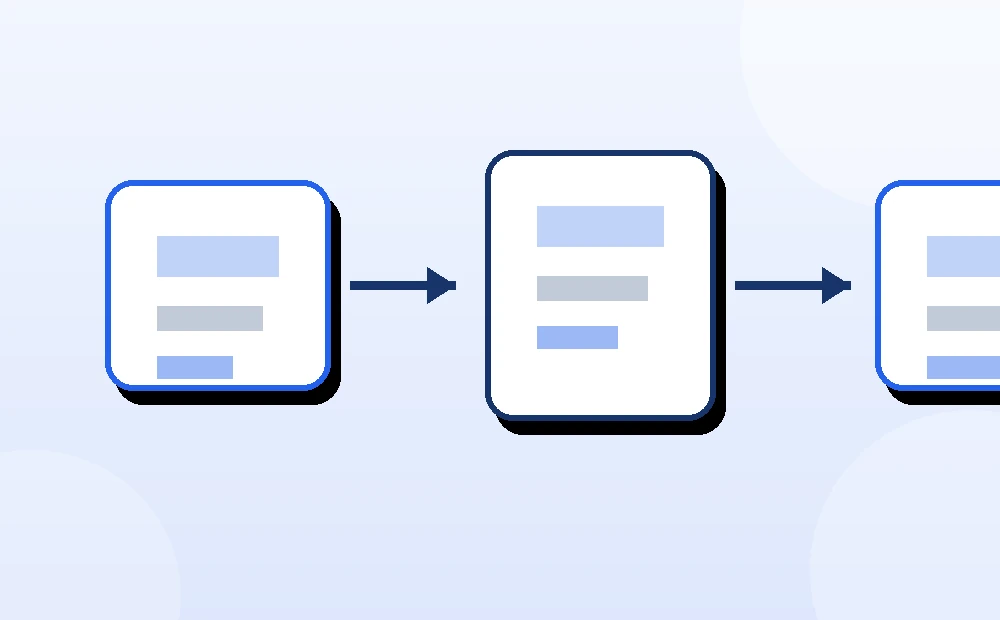
OneDrive version history applies to many file types, including Microsoft 365 files, PDFs, CAD files, photos, and videos. Restoring an older version makes it current while the former current version becomes historical.
Google uses two models:
- Google Docs, Sheets, and Slides have detailed editor history with collaborator attribution.
- Uploaded PDFs, Office files, images, and other binaries use Drive's Manage versions feature.
A Google editor file exported and uploaded again receives a new file identity and does not carry its original editor history. A OneDrive Office copy also has its own version trail when saved as a separate cloud file.
3. Compare selective recovery
Both ecosystems support a safer alternative to whole-file rollback.
In Office, open a historical version read-only, copy needed content, or use Save a Copy. In Google editors, select an older version and use Make a copy, then transfer the required paragraphs, cells, or slides.
Selective recovery is usually better for shared files where valid new work exists alongside an unwanted change.
4. Compare team ownership
OneDrive for work or school is closely related to SharePoint. Files in Teams channels normally live in SharePoint libraries, while private or chat-related sharing can involve different OneDrive locations. Recovery starts from the actual storage URL.
Google shared-drive files belong to the Workspace organization. Losing membership can remove access without deleting the file. Managers and administrators handle higher-risk recovery actions.
Neither service's personal recycle bin should be treated as the universal recovery location for team data.
5. Compare broad rollback and ransomware scenarios
Eligible Microsoft 365 subscribers can use Restore your OneDrive to roll many file actions back to an earlier point after widespread deletion, overwrite, corruption, or malware. It is intentionally broader than restoring one file.
Google Workspace recovery depends more heavily on administrator tools, Drive audit information, retention rules, and products such as Vault or backup services configured by the organization. Personal users should not assume an equivalent whole-Drive time-machine control exists.
Before any broad rollback, preserve valid files created after the chosen point and document the affected scope.
6. Compare offline editing risk
Microsoft Office can combine AutoSave, OneDrive sync, version history, and application AutoRecover. The right layer depends on whether the file had reached OneDrive and whether Office closed unexpectedly.
Google Docs, Sheets, and Slides offline editing must be enabled beforehand in a supported browser configuration. Device-only edits need the original browser profile to reconnect and synchronize. Clearing browser storage before that can remove the only remaining local state.
In either system, a second device shows the cloud state; it does not automatically contain unsynchronized work from the first device.
Choose by incident
| Incident | OneDrive first step | Google Drive first step |
|---|---|---|
| One file deleted | Web Recycle bin | Web Trash |
| File exists but content is old | Version history | Editor history or Manage versions |
| Native editor crashed | Office recovery plus cloud history | Reopen original file and history |
| Shared team file vanished | Identify SharePoint or OneDrive location | Identify shared drive and membership |
| Many files changed maliciously | Restore your OneDrive if eligible | Escalate to Workspace admin |
| Two local copies conflict | Preserve both and compare | Identify file IDs and histories |
Test the restored result
For either service:
- Confirm owner, account, and original path.
- Open the recovered file from the web.
- Verify content specific to its application.
- Check version history after restoration.
- Test collaborator access.
- Let one sync client update and compare the local result.
A familiar filename is weak evidence. The correct file should contain the expected content and preserve the intended sharing context.
Which service is “better” for recovery?
OneDrive is compelling for organizations centered on Microsoft 365, Office coauthoring, SharePoint, and Windows management. Google Drive offers especially transparent edit attribution and copy-from-history workflows for native Docs, Sheets, and Slides.
The stronger choice is the one whose ownership model, administrator controls, backup plan, and user behavior are understood. Neither sync service is a complete independent backup by itself.