
With Google Drive version history, the danger is replacing one bad version with another. Treat the task as a comparison job: download likely versions separately, check timestamps and content, then decide whether to merge or restore.
First move: For Google Drive version history, download the older version as a separate copy before deciding whether to restore over the current file.
Before you open any recovered file
Stop creating new versions for a moment. Close any replacement file with the same name, leave Trash or Recycle Bin alone, and avoid cleanup tools. If the file matters, capture the error message and write down the last device, app, folder, and edit time.
The note gives the recovery a direction. If the app crashed, start with recovery folders. If a cloud file changed, check web history. If the file is damaged, preserve the original before every repair attempt.
Map the storage trail
Check the most likely owner of the newest copy first, then widen the search. For this case, start with:
Drive > Search optionswith owner, type, and modified date filtersDrive > Trashbefore anything is permanently deletedFile > Version history > See version historyinside Docs, Sheets, or Slides- The folder activity panel to see whether the file was moved or renamed
Before opening a candidate, duplicate it and add the source to the filename. That small label prevents a confusing pile of almost-identical documents.
Build a holding folder before testing
- Sort candidates by modified time, then by file size.
- Copy each likely file into the holding folder.
- Open copies read-only when the app allows it.
- Compare the first page, the last edited section, and any formulas, comments, or images that matter.
- Restore only after the best copy is clear.
A holding folder gives you room to compare. One candidate may have the newest text while another has intact formatting, comments, or slides. Do not force the decision before both are safe.
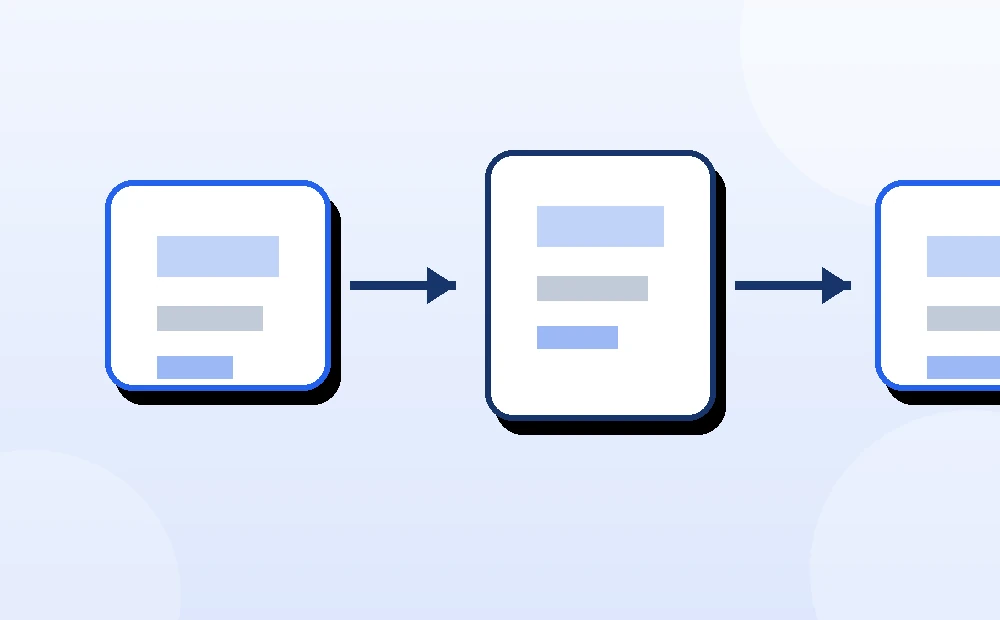
The recovery path I would use here
For Google Drive, the safest order is evidence first, restore second. In a desktop Office file, that means checking the app recovery picker and AutoRecover location before saving a new version. In a cloud file, it means opening the browser version of the service and checking activity, Trash, and version history before trusting the local sync folder. In a damaged file, it means preserving the original before repair.
The five-minute version is simple: preserve the current state, check the browser copy, and save a separate candidate. That is enough to make later help much cleaner.
A realistic recovery sequence
A useful version is covered by a rushed edit just before a deadline. The right move is to open version history, download the promising older version as a separate file, compare the changed section, and only then decide whether to merge text or replace the current file. Restoring without that copy turns a reversible mistake into a second loss.
Quick triage table
| What you see | Best first check | Risk to avoid |
|---|---|---|
| The app crashed before a save | AutoRecover, unsaved files, and temp locations | Reopening and saving a blank replacement |
| The file was deleted from a synced folder | Web Trash or recycle bin for the cloud service | Letting the synced deletion become the only story |
| The content is older than expected | Version history and downloaded copies | Restoring over the live file before comparing |
| The file opens with errors | Duplicate first, repair only the duplicate | Damaging the only original with repeated repair attempts |
| Search finds many odd names | Sort by date, extension, and size | Opening every result and accidentally saving changes |
Mistakes that erase useful clues
- Restoring the first visible result because the filename looks right.
- Trusting Recent files instead of checking the actual storage location.
- Opening candidates directly from a temp folder and then saving over them.
- Running third-party recovery tools before copying cloud and backup evidence.
- Waiting until cloud Trash, version history, or backup retention windows expire.
When professional help is the safer move
Stop if the missing file is legally important, business-critical, the only copy of a major project, or stored on a drive that is making noise or disconnecting. Also stop if every repair attempt makes the file smaller or less readable. At that point, a clean handoff with copied candidates and notes is more valuable than another random tool.
Document the candidates you found
End the session with a note someone else could follow: original name, expected folder, device, account or cloud service, last known edit time, and each copied candidate with its source.
This record helps even when the recovery works. If the restored file later turns out to be incomplete, you can return to the candidate list instead of starting over. It also makes a professional handoff cleaner because the next person can see what was already checked and which version looked strongest.
Sources and further reading
- Microsoft Support: recover Office files
- Microsoft Support: view previous versions of Office files
- Google Drive Help: find or recover a file
The takeaway
Do not let urgency turn a recoverable mistake into an overwrite. Preserve candidates first, then decide.